
Run History
Every time you run a workflow — whether a single node or the full pipeline — Tala saves a record in Run History. This is your central place to monitor results, debug failures, download outputs, and roll back changes.
Accessing Run History
Click the button on top right toolbar. You'll see a list of all past runs, sorted by most recent.
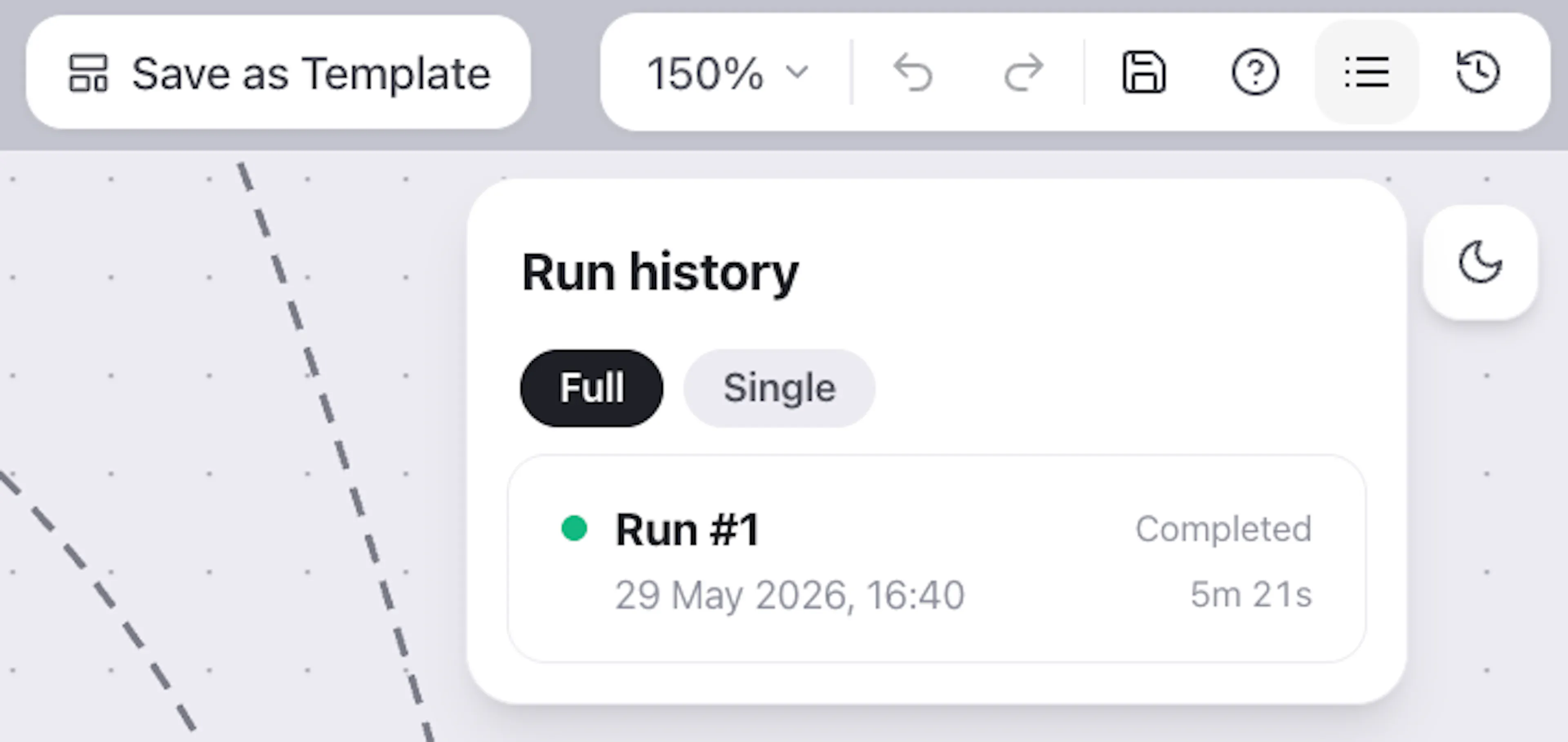
Click any run to open it and inspect the output of each node.
Viewing Run Results
Inside a run, you can see the output of every node that was executed. Click a node's result to preview it — images and videos render inline.
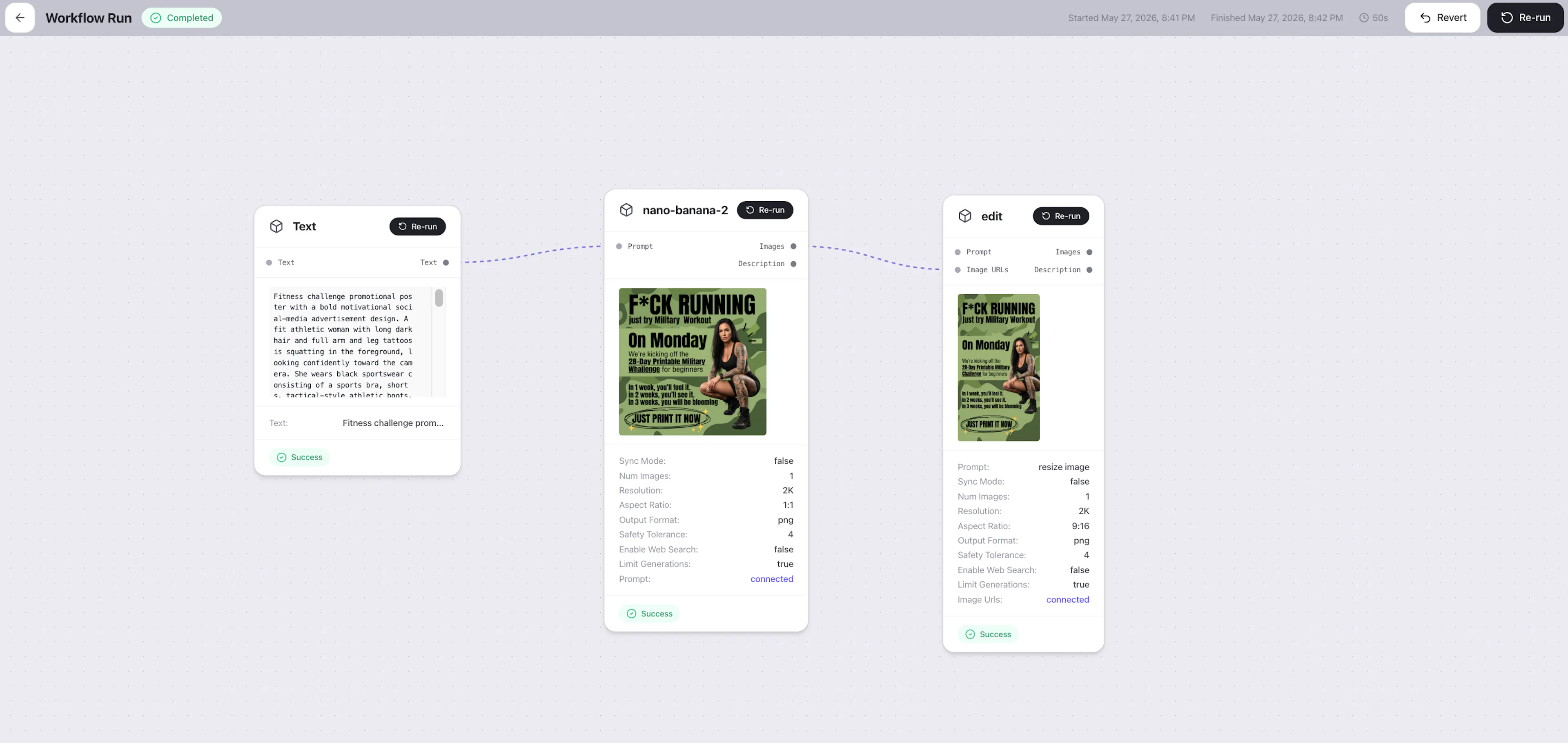
You can also download the file using Download button that appears on hover.
Re-running a Failed Node
If a run fails partway through — say a video generation times out or an API call errors — you don't need to restart the whole workflow from scratch.
You can re-run any individual node directly from the run history:
-
Open the failed run
-
Find the node that failed
-
Click Re-run Node
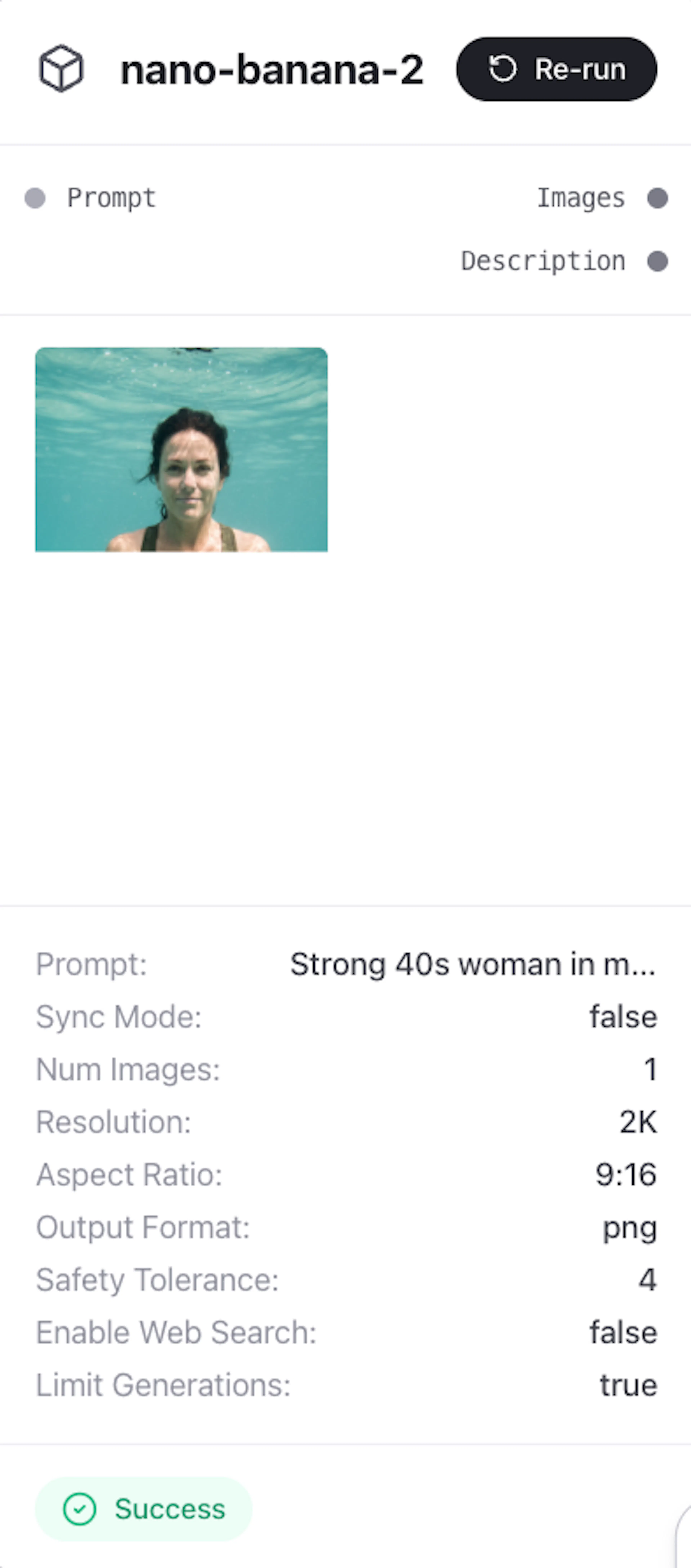
Tala will re-execute just that node using the same inputs, then continue downstream from there.
Re-running the Full Workflow
To re-run an entire workflow from a specific point, use the Re-run Workflow button. Instead of starting from the very beginning, Tala picks up from the last failed node — so successfully completed nodes aren't re-executed unnecessarily.
Reverting to a Previous Version
Every run also saves a snapshot of what your workflow looked like at the time it ran. If you've made changes to your workflow and something broke, you can roll back to an earlier working version.
Open any past run and click Revert. This replaces your current workflow with the version that was used for that run.
History Tab
Use the filters at the top to narrow down by:
-
Workflow — show runs from a specific workflow only
-
Date — filter by time range
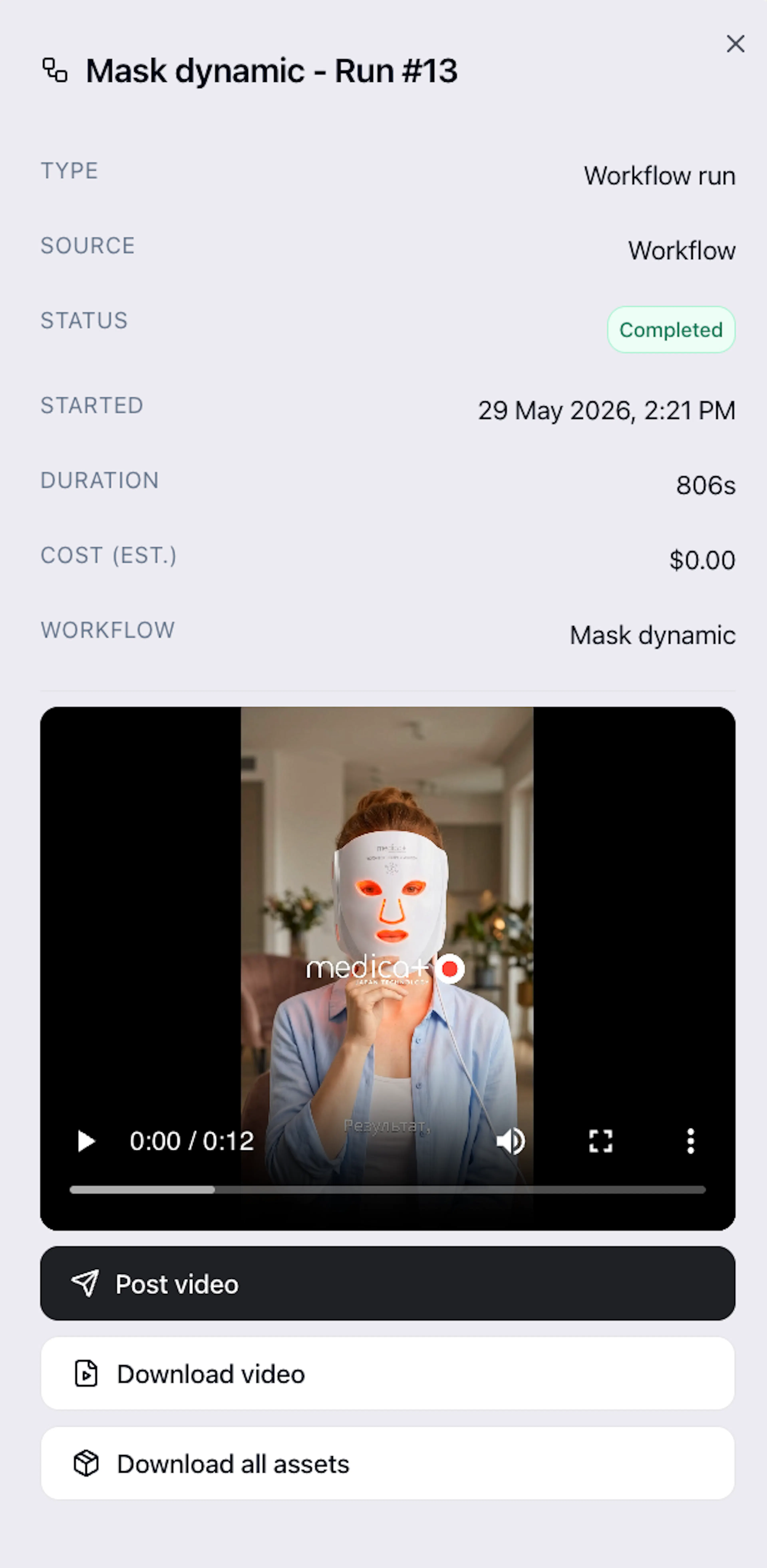
Click on Run to open side menu with Run details.
-
Post video - post video to linked Social account.
-
Download video - download last file in workflow run.
-
Download all assets - download Zip archive with all generated files of Run.
Bulk Downloading Outputs
When you've run a batch of variations via Collections, you can download all results at once:
-
Go to Workflows - History
-
Select multiple runs using Select with the checkboxes
-
Click Download
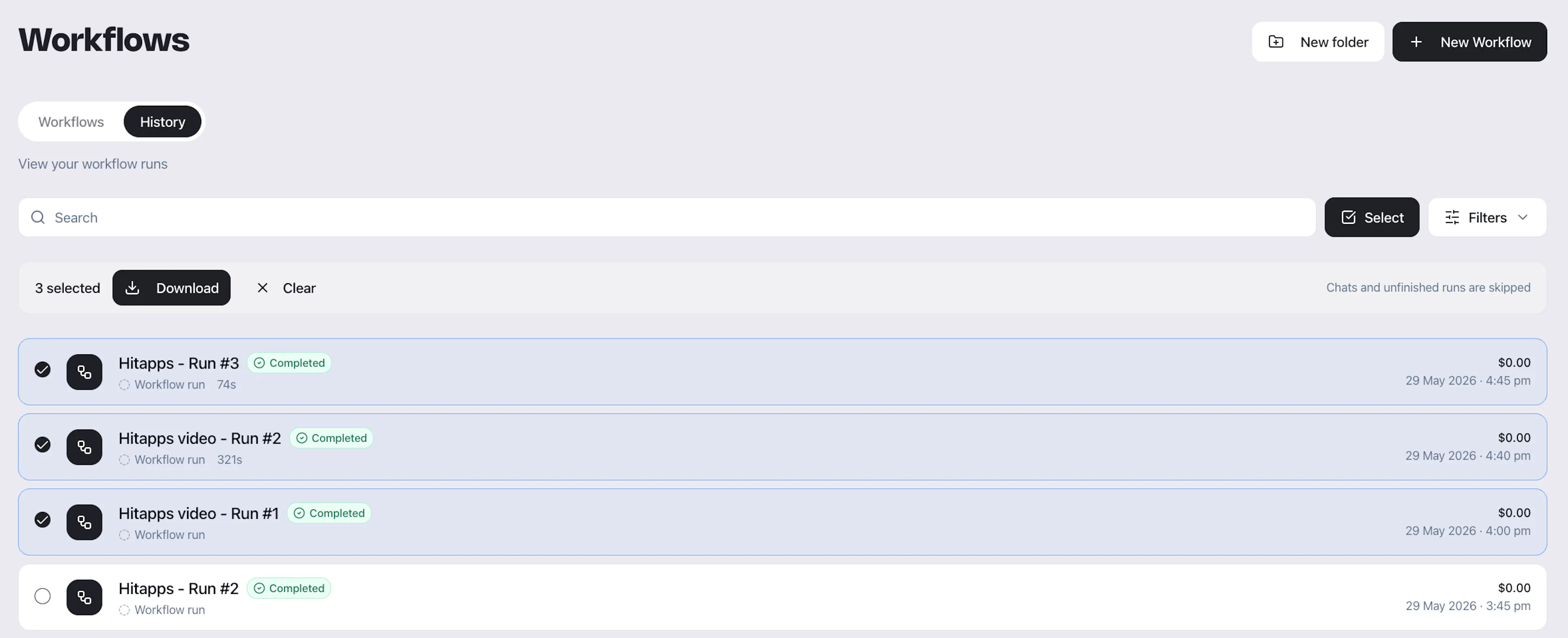
Tala will package the final output (the last node's result) from each selected run into a single download.
What's Next?
-
Editor — learn how to assemble clips, manage layers, and control timing
-
Collections — set up batch runs with multiple input variations