
Best Practices
A collection of practical patterns that come up often when building workflows in Tala. Use these as starting points — they're solutions to real problems you'll likely hit as your workflows get more complex.
General Tips
Test nodes individually before running the full workflow. Use the Run button on individual nodes while building. Catch bad prompts and misconfigured settings early — before they waste credits on downstream generations.
Save prompts that work. When a prompt produces a great result, copy it somewhere safe. Prompts are easy to accidentally overwrite, and good ones are hard to recreate from scratch.
Use Assets for reusable media. Logos, watermarks, end cards, and brand elements should be uploaded to Assets once and reused across workflows — not re-uploaded each time.
Name your workflows clearly. As your library grows, descriptive names like Product Launch - Vertical 9:16 - EN are much easier to navigate than Workflow 7.
Use Revert as a safety net. Before making major changes to a working workflow, run it once so a snapshot exists in history. If your edits break something, you can always revert.
Handling Unknown Video Length
When your final video combines multiple clips with a voiceover, the total length depends on the voiceover — which is never the same twice. For example, your first video is always 10 seconds, but the voiceover might be 15 seconds one run and 17 the next. You need the second video to fill the remaining time exactly.
The solution is to calculate the second video's duration dynamically based on the voiceover length.
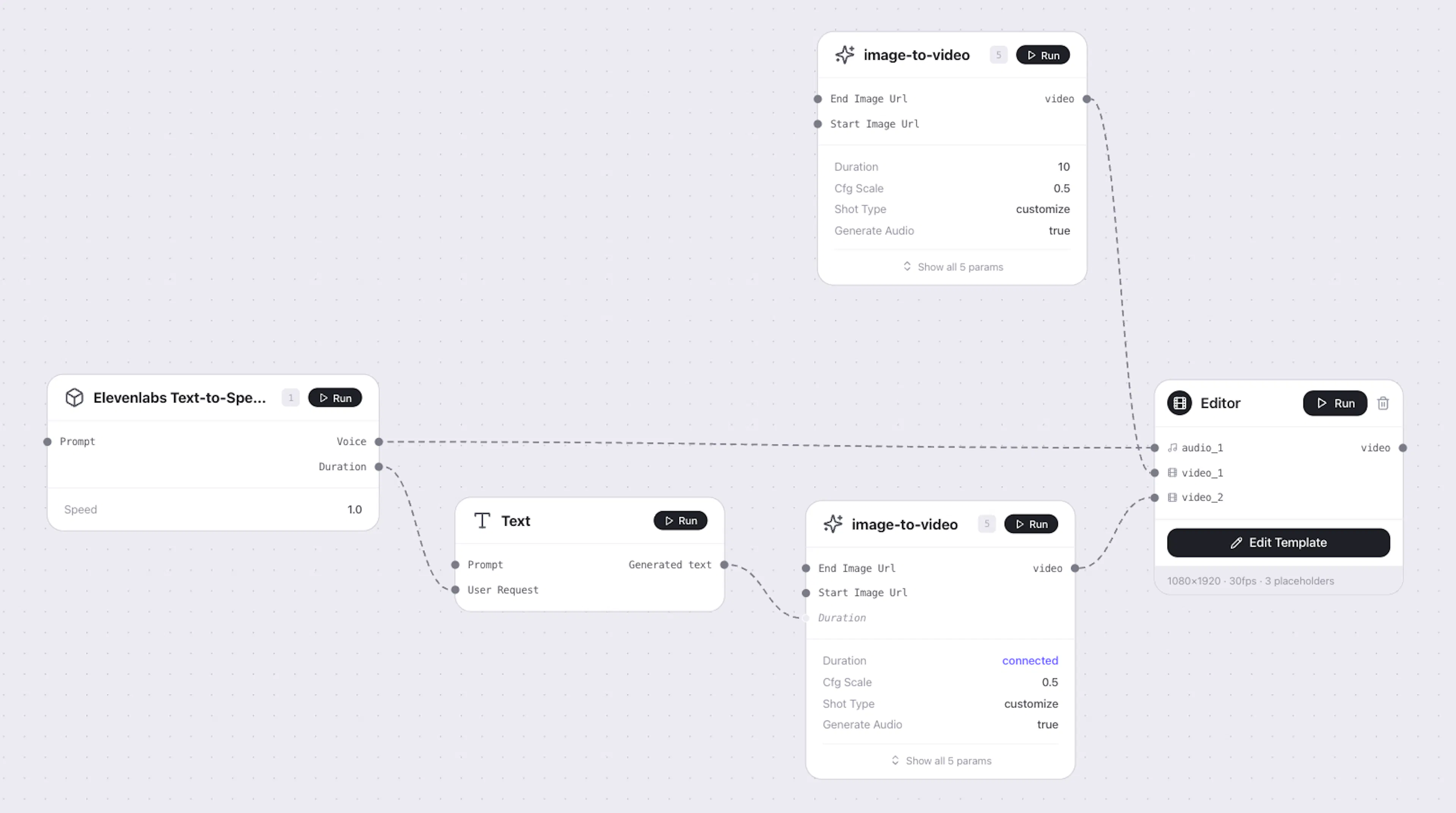
Pattern
-
Generate your voiceover using a Text to Speech node — it outputs the audio along with its duration
-
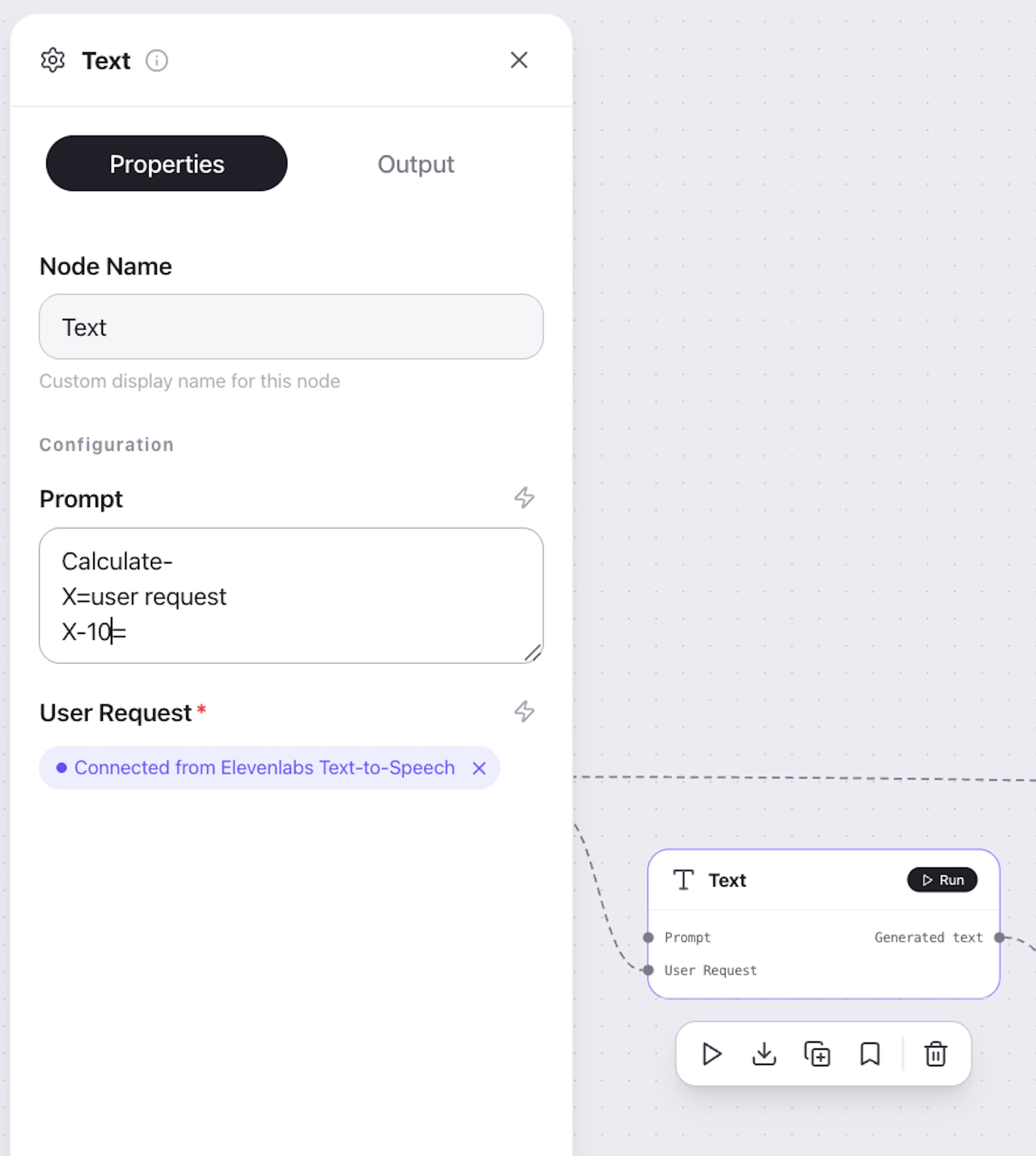
Add a Calculate node — subtract 10 seconds (your first video's fixed length) from the voiceover duration to get the required length of the second video
-
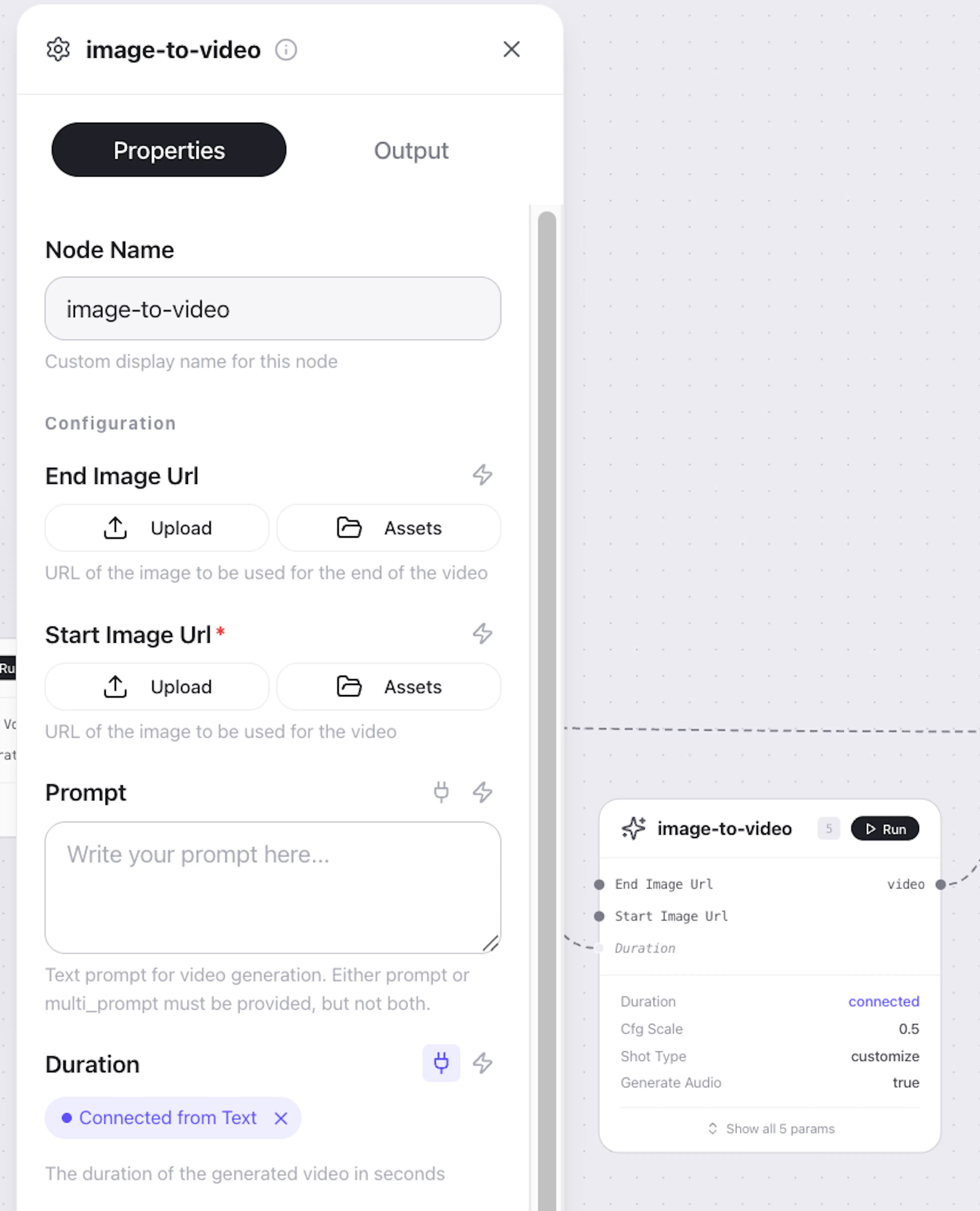
On your second video generation node, make the duration setting dynamic (lightning bolt icon) — this exposes it as an input
-
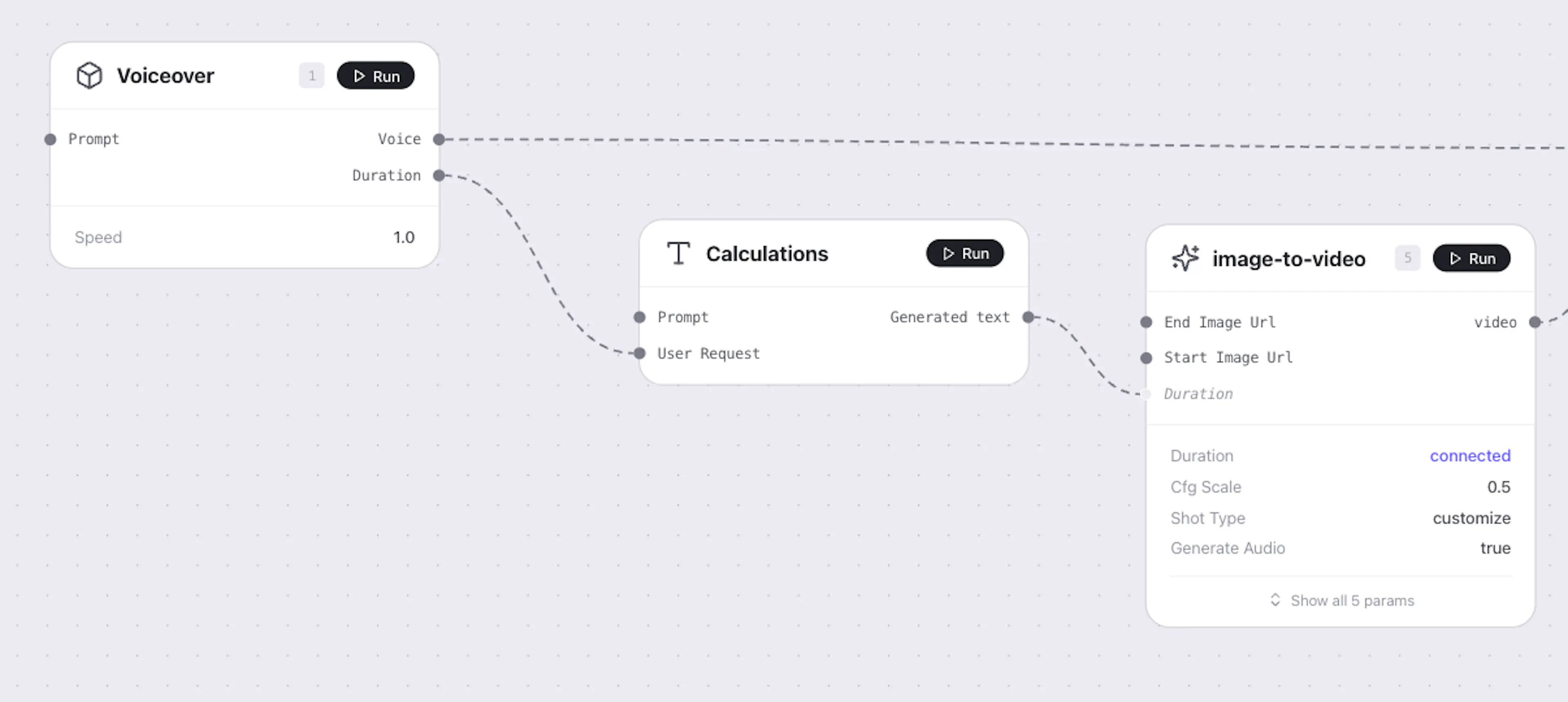
Connect the Calculate node's output to the duration input of the second video generation node
-
The second video now generates at exactly the right length to fill the gap
-
In the Editor, add the second video as the last clip and enable the Use full media duration checkbox so the timeline adapts to the actual generated length
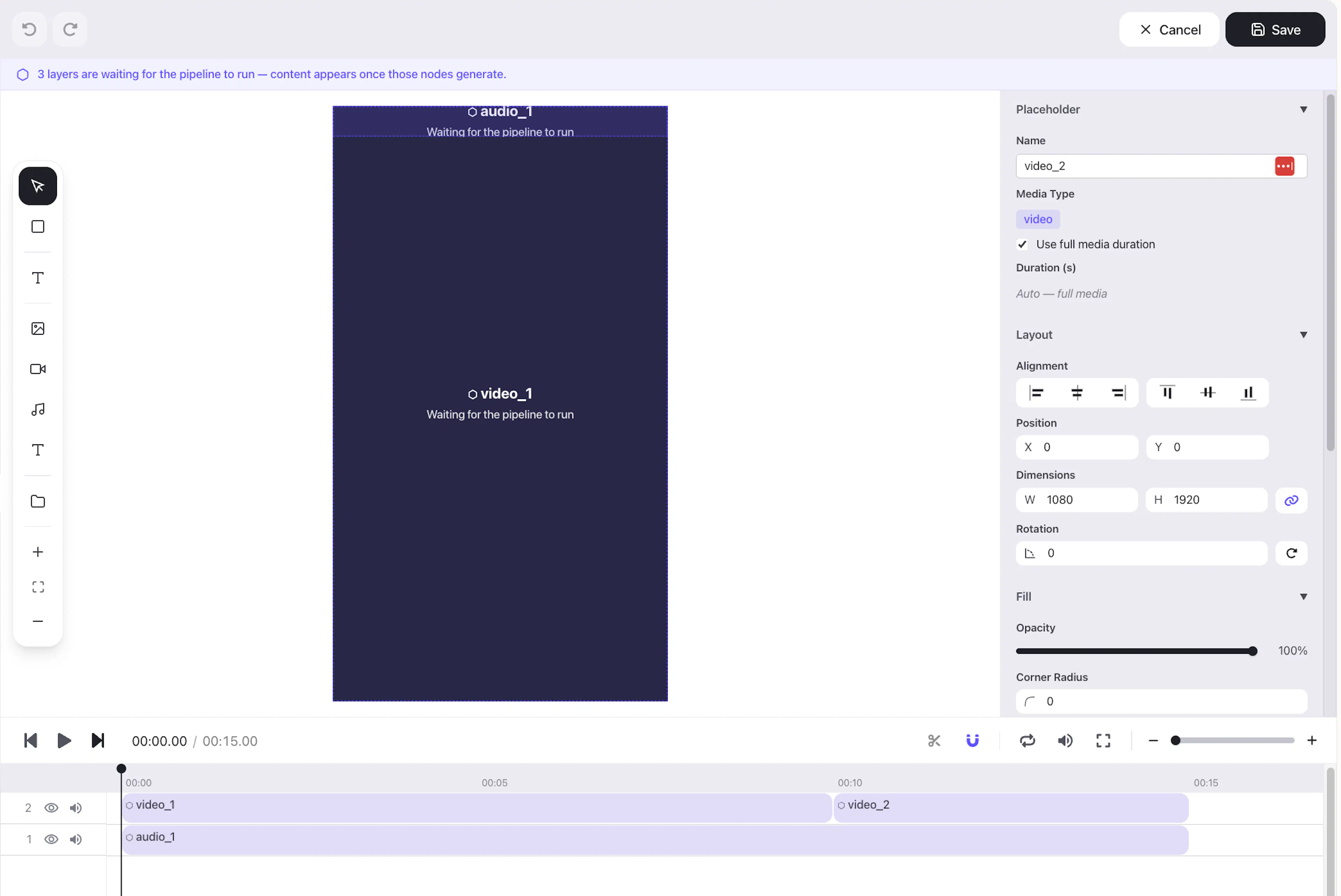
This pattern ensures your final video always matches the voiceover length precisely — no manual trimming, no silence gaps at the end.
Long Continuous Video — Extract Frame + 10-Second Segments
Kling (the video generation model) produces the best lip-sync quality for clips of 10 seconds or under. Beyond 10 seconds, lip-sync accuracy starts to degrade noticeably.
If you need a longer video — say 25–30 seconds — don't try to generate it in one clip. Instead, chain multiple 10-second segments together using the Extract Frame pattern.
Pattern
-
Generate your first clip (10 seconds) from a starting image
-
Add an Extract Frame node — set it to Last Frame
-
Connect the first clip's output to Extract Frame
-
Use the extracted frame as the Start Image for your second clip
-
Repeat for as many segments as you need
-
Assemble all clips in the Editor using placeholders
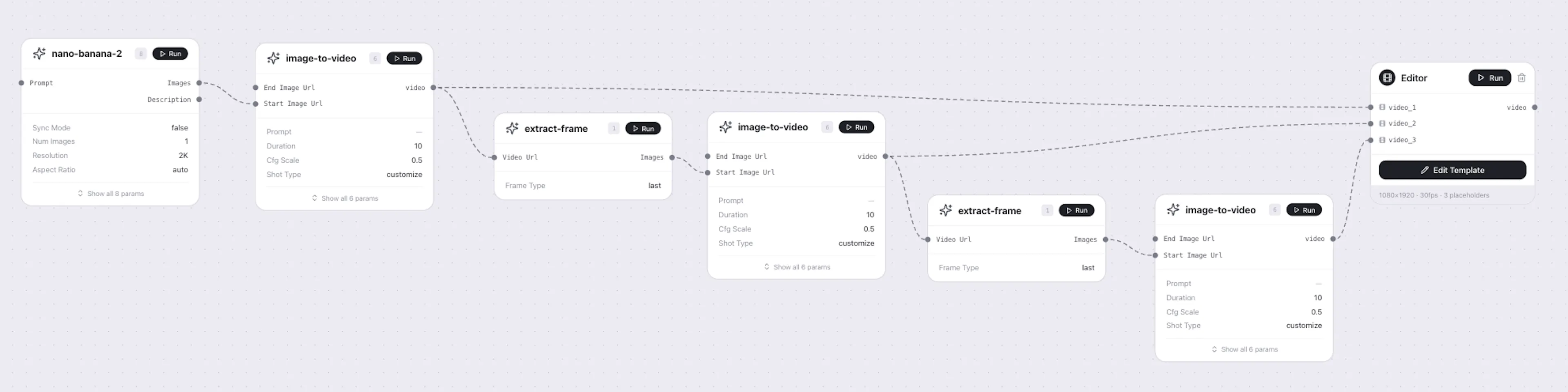
This produces a seamless result because each new clip starts exactly where the previous one ended — same lighting, same character position, same background.
Recommended segment lengths
| Total video length | Number of segments |
|---|---|
| Up to 10 seconds | 1 clip |
| 11–20 seconds | 2 clips (10s + remainder) |
| 21–30 seconds | 3 clips (10s + 10s + remainder) |
| 30+ seconds | Add segments as needed |
Redubbing AI-Generated Voice
When you generate a video with AI-generated speech, you may want to redub it into another language — or replace the voice entirely — while keeping the lip-sync intact.
Tala's 11 Labs integration handles this through a dedicated redubbing flow.
Pattern
-
Generate your video with audio using an Image to Video node (Generate Audio: on)
-
Add an 11 Labs node — select Dubbing/Voice changer
-
Connect the video output to the Dubbing node
-
Configure the target language and voice settings
-
The output is a new video with the audio replaced and lip-sync adjusted to match
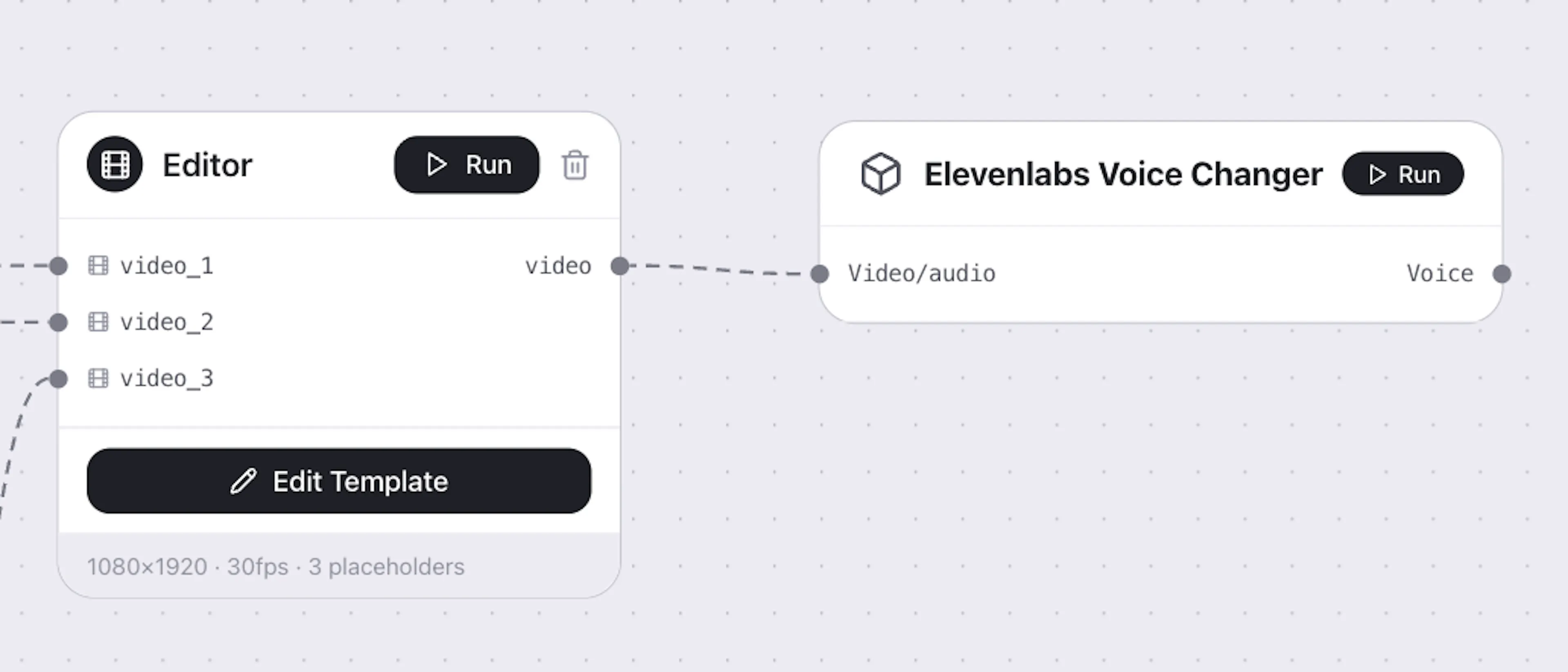
Additional voice options in 11 Labs
Beyond dubbing, the 11 Labs integration supports:
-
Text to Speech — generate a voiceover from a text prompt, then layer it over video in the Editor
-
Voice Cloning — use a reference audio sample to match a specific voice style
-
Voice Changer — transform an existing audio track into a different voice
What's Next?
-
Your First Workflow — put these patterns into practice
-
Editor — dynamic durations and timeline assembly
-
Collections — batch runs for multilingual and multi-variant campaigns